When you click on the link for your exam and proceed to login, a pop (on the top left of your Chrome browser) will come up during that process. You MUST allow the camera and microphone access.
Still, having issues enabling your microphone and/or camera for ExamOnline?
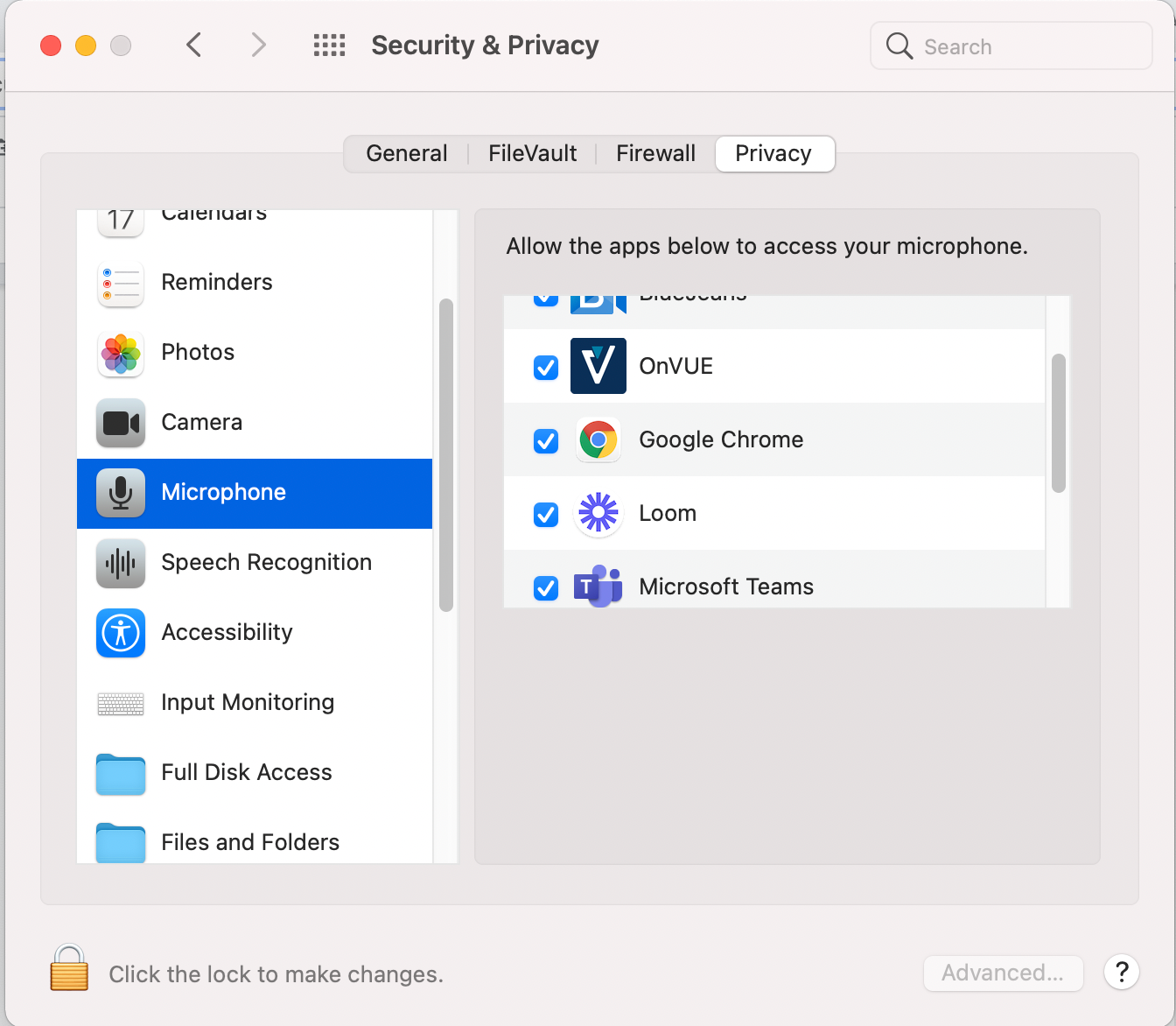
Under Mac System Preferences (not Chrome settings)
- Select Security and Privacy
- Select Privacy
- Select Microphone
- Ensure Google Chrome is enabled (ticked)
- Select Camera
- Ensure Google Chrome is enabled (ticked)
- Select Screen Recording
- Ensure Google Chrome is enabled (ticked)