For the best experience, use Wordly App for Zoom. Any Zoom meeting participant can use the Wordly App for Zoom during a zoom meeting.
Prerequisites
1. The Wordly App for Zoom must be installed into your Zoom account - Install Now.
2. It is highly recommended that you enable Original Sound in your Zoom preferences for the absolute best translation experience (see Use Original Sound).
Attend a Session
Join a translation session by simply starting the Wordly App for Zoom in your meeting.
- Click on the “Apps” button after starting your Zoom meeting.
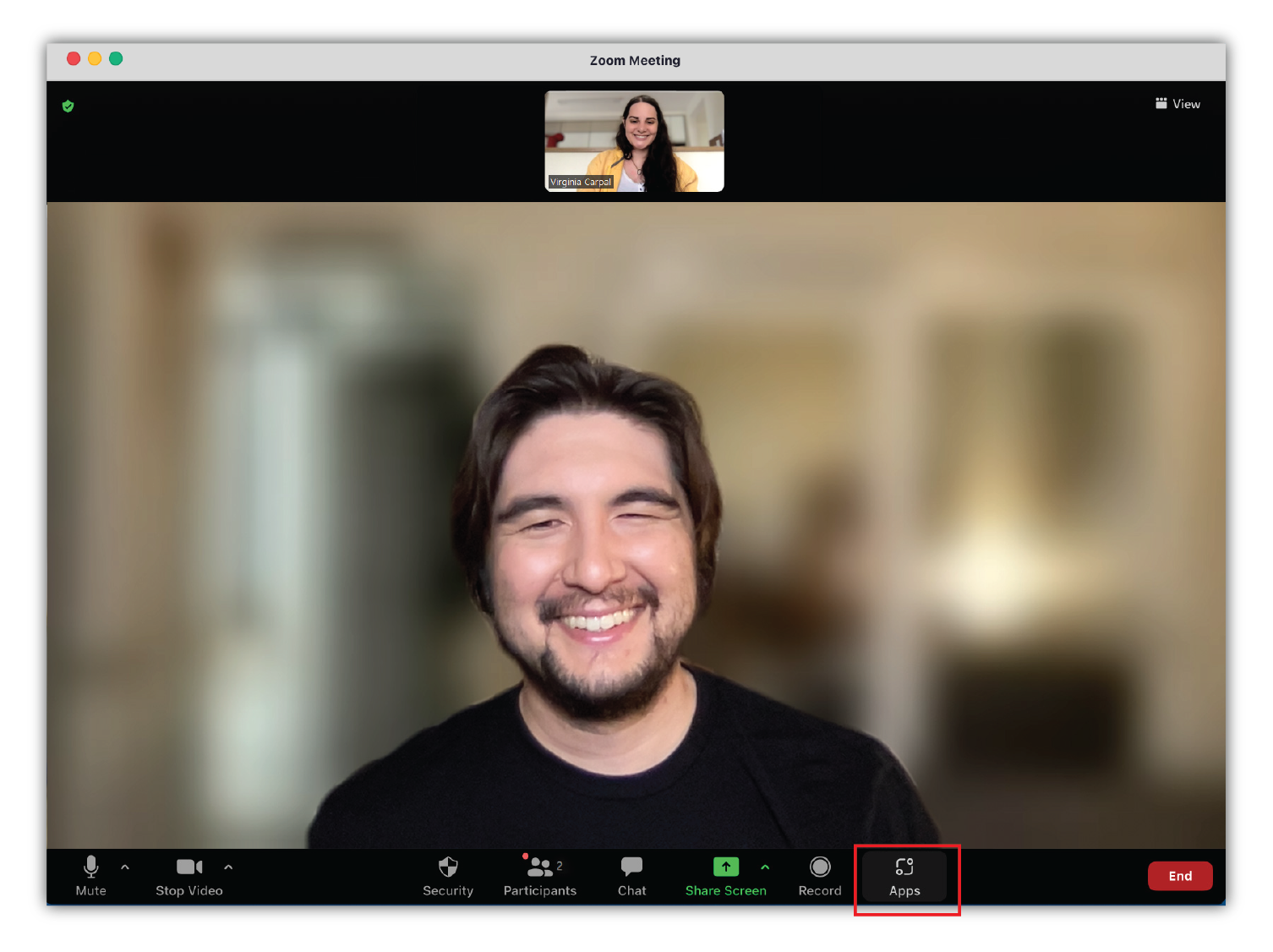
- Click on “Wordly App for Zoom.”
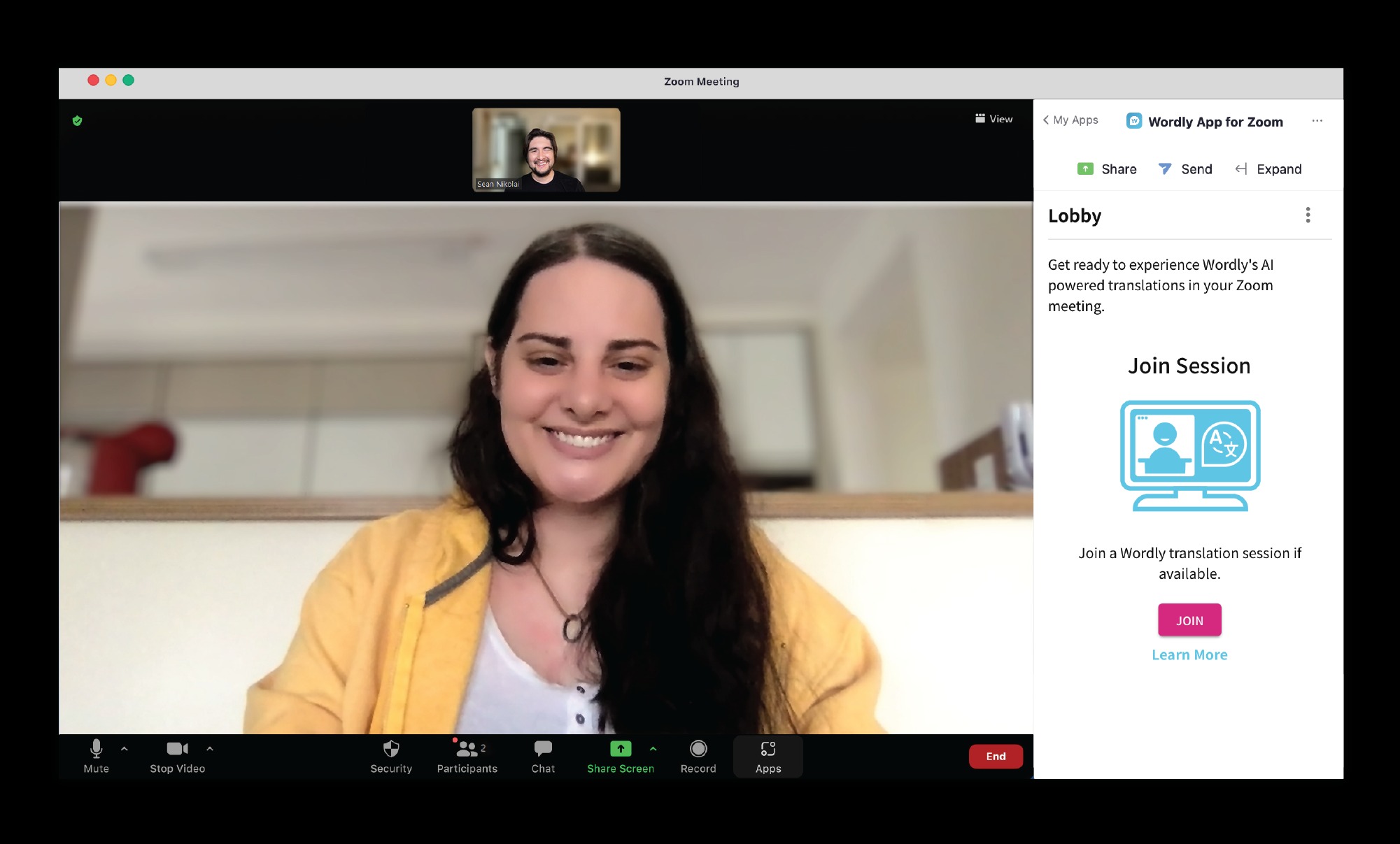
As soon as the app starts up in your meeting, it will automatically join the translation session started by the Zoom host. After joining, you will begin seeing translations in the language you have chosen.
If the host has not started a Wordly session, then the app will keep trying to join for a short while. If no session starts, you will end up in the session lobby. The lobby will show a “Join” button for you to click once the host starts a Wordly session.
Choose a Language
To change the translation language, click on the “Translate To” control near the top of the Wordly App for Zoom window:
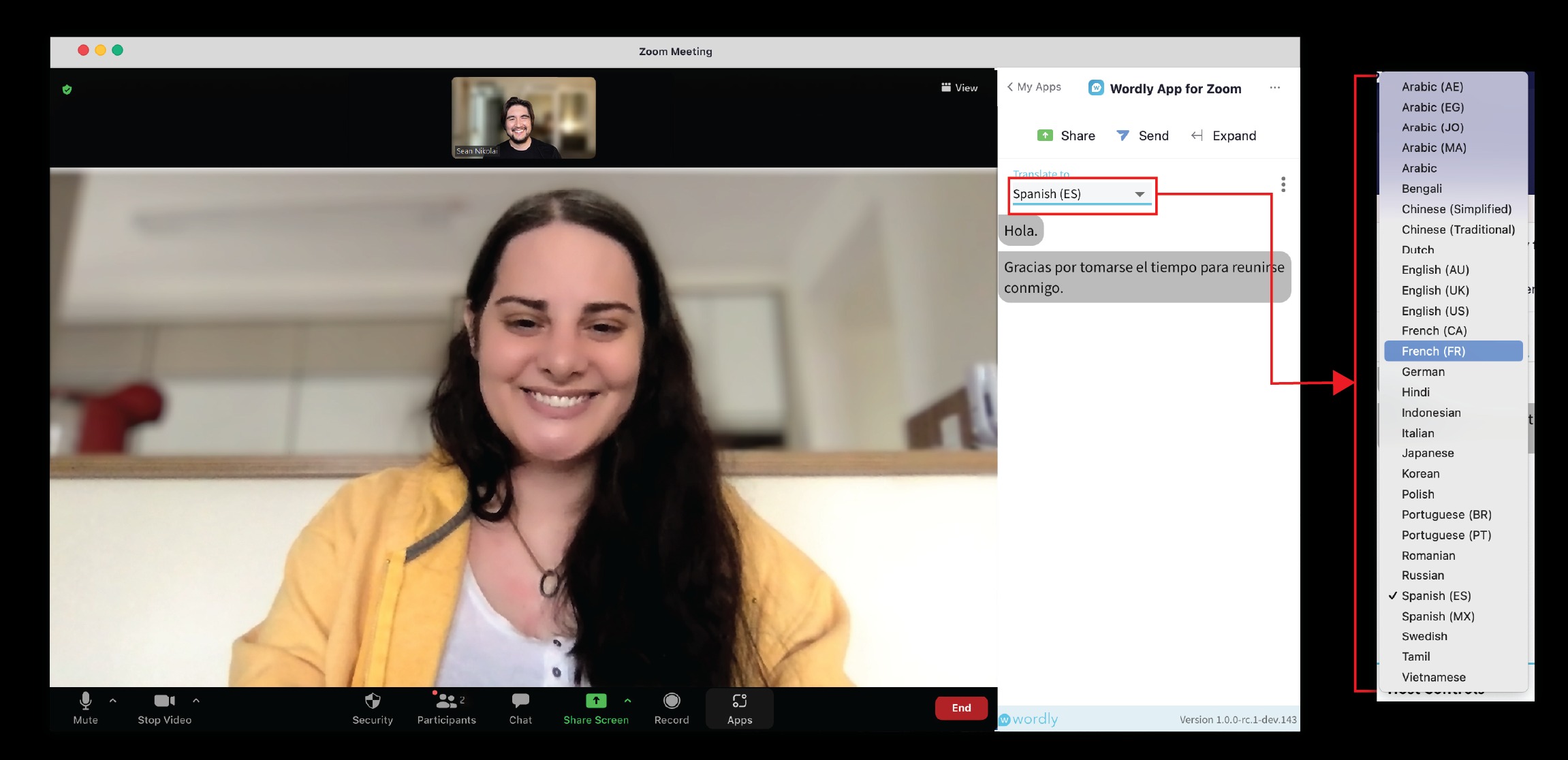
The new translation language should take effect as soon as it is selected. Note that you will only see translations into the language you have changed to, for words spoken after the change, not before.
Rejoin a Session
In rare circumstances, you may be inadvertently disconnected from an ongoing Wordly session and taken back to the session lobby.
You can rejoin the ongoing session by clicking on the Join or Attend button.
Can't get Wordly to work in Zoom?
You can still use Wordly on your browser - Get Started.