Ensure that the speaker's audio quality is the best it can be by following these tips.
The Wordly App for Zoom will give the best results when it receives high-quality audio. Speech is much easier to understand when audio is good and translation will suffer if the original speech is not correctly understood.
Use Original Sound
Wordly strongly recommends that all meeting participants enable the “Original Sound” setting in Zoom. Overly active noise suppression and compression can reduce translation accuracy under some conditions.
To enable the “Original Sound” control inside Zoom while in a meeting: 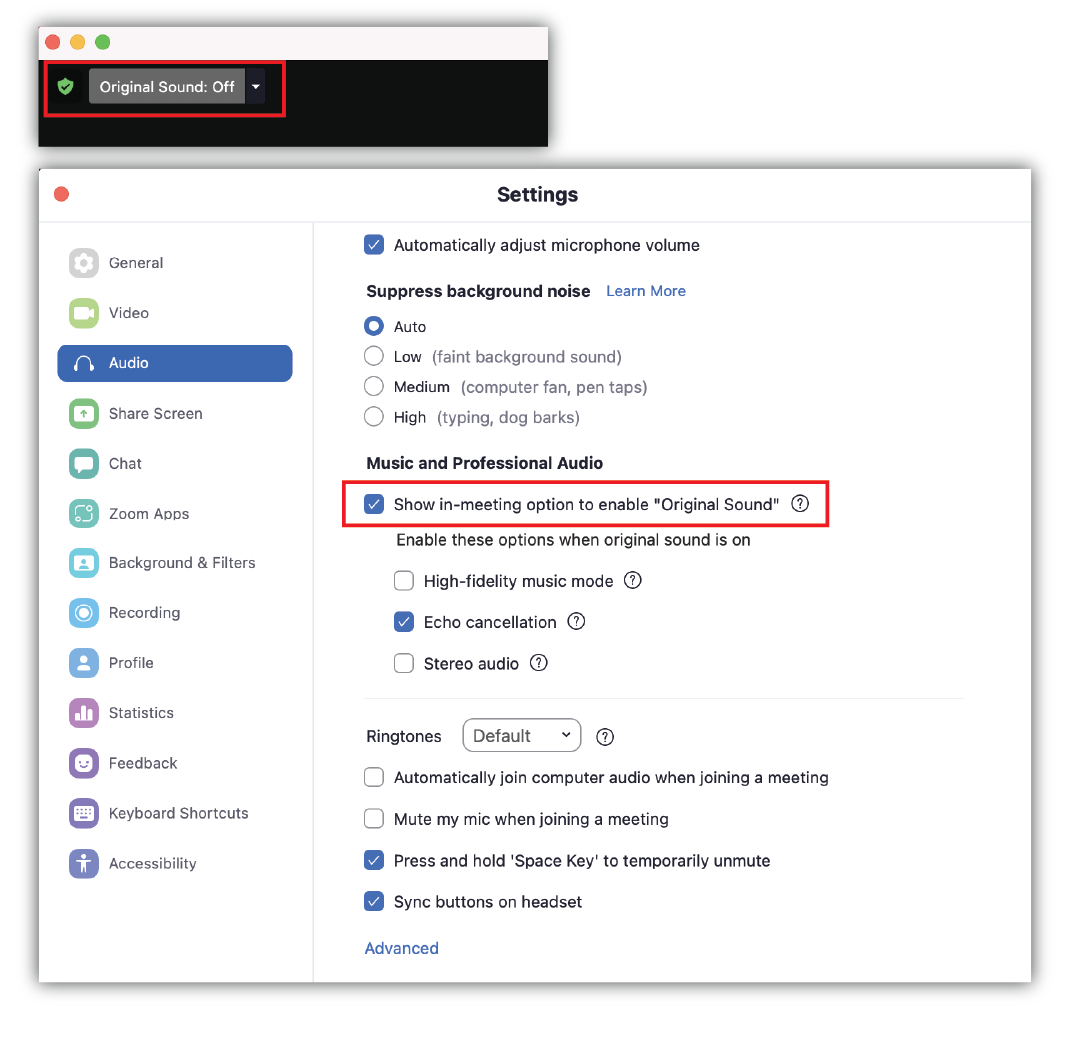
- Click on the green shield in the top left corner.
- Click on the grey gear in the top right of the Meeting Info popup. This will open settings.
- From the left-hand menu, select “Audio.”
- Under Music and Professional Audio, select “Show in-meeting option to enable Original Sound."
Once the “Original Sound” control is enabled, it will be visible during Zoom meetings. To turn on “Original Sound” during a meeting:
- Click the “Original Sound” Off dropdown.
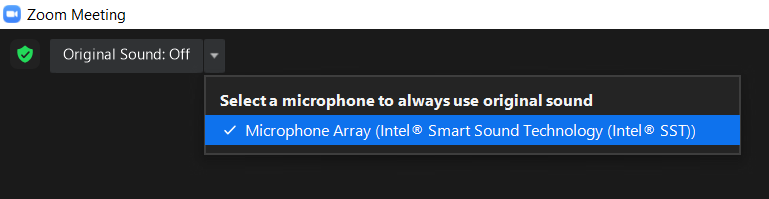
- Select the microphone you want to use with Original Sound On.
- Original sound should now be on.